
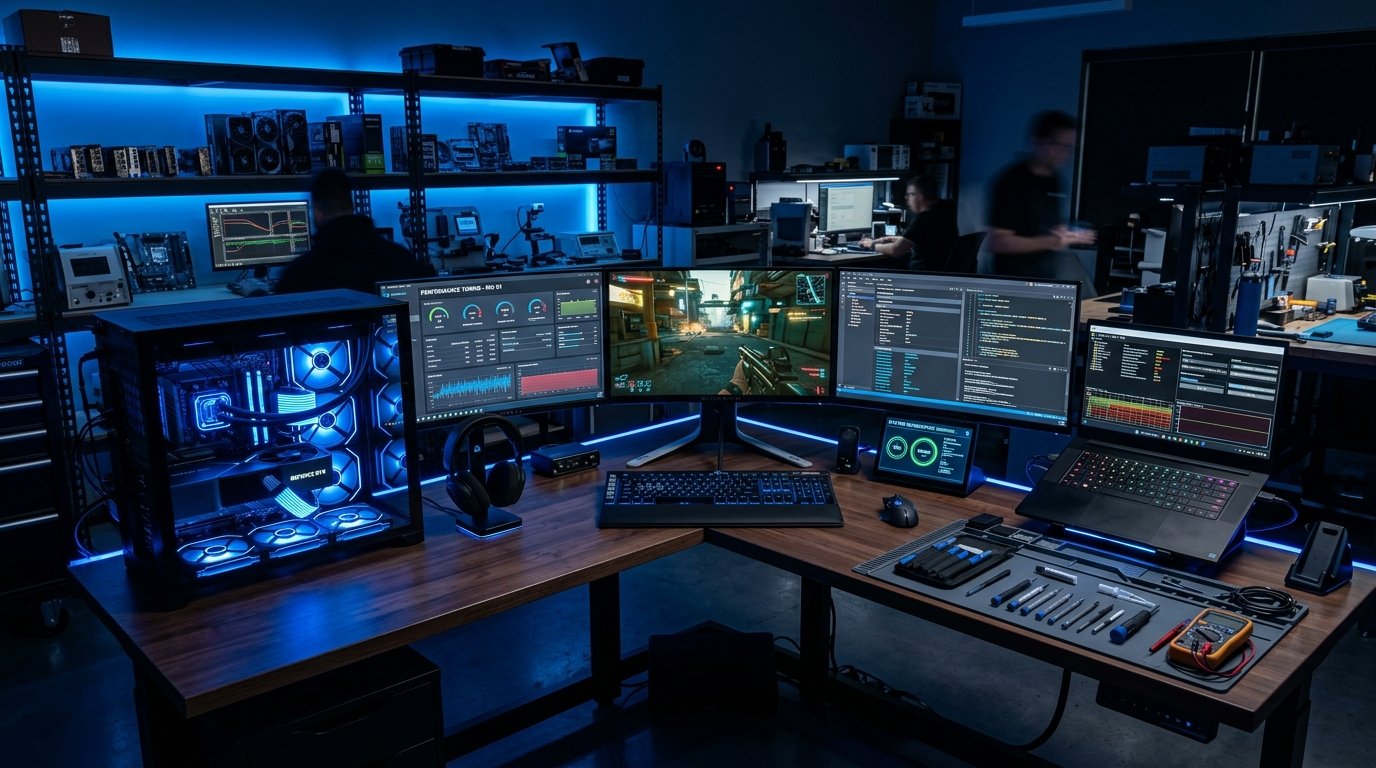
Is your desktop PC or Windows laptop taking several minutes to boot up, freezing when opening everyday apps, or lagging during multitasking? Over time, background startup bloatware, fragmented file indexes, thermal dust accumulation, exhausted storage swap space, and aging mechanical storage slow down even high-spec systems.
Before spending hundreds of pounds on a replacement machine, following an engineering-level optimization routine can restore snappy responsiveness. In this guide, our London hardware and software specialists walk you through proven steps to diagnose bottlenecks, eliminate unwanted background drains, optimize memory, and perform strategic hardware upgrades.
1. Why PCs Slow Down Over Time (The 5 Primary Bottlenecks)
Operating systems do not degrade by chance; performance decay is the result of cumulative hardware and software factors:
- Background Startup Bloat: Applications quietly configure background updater daemons and telemetry agents that run continuously.
- Drive Saturation & Pagefile Fragmentation: When your primary C: partition exceeds 80% capacity, Windows loses the contiguous swap space needed for virtual memory paging.
- Thermal Throttling: Dust trapped in laptop cooling fins causes internal temperatures to exceed 85°C, forcing the CPU and GPU to downclock their clock frequencies to prevent burn-in.
- Stealth Cryptominers & Spyware: Unvetted freeware or malicious downloads run high-thread crypto mining scripts in the background.
- Mechanical Storage Latency: Traditional 5,400 RPM hard disk drives (HDDs) have high seek times compared to modern NVMe solid-state storage.
2. Phase 1: Advanced Startup Management & Background Process Audit
Every program that loads at boot consumes CPU cycles and lengthens startup times. Managing startup impact is the fastest software fix you can apply:
- Press Ctrl + Shift + Esc to launch Task Manager.
- Select the Startup Apps tab (speedometer icon on Windows 11).
- Sort items by Startup Impact.
- Right-click unnecessary non-system programs (e.g., Discord, Spotify, Steam, secondary cloud sync clients, printer helper updaters) and select Disable.
Pro Tip: Press Win + R, type msconfig, go to the Services tab, check Hide all Microsoft services, and inspect the remaining third-party services. Uncheck updater daemons from software you rarely use.
3. Phase 2: Deep Disk Cleanup & Windows Component Store Purge
Windows builds up gigabytes of redundant update backups, crash dumps, and installer caches. Use elevated administrative commands to reclaim disk space and defragment master file tables:
Automated Component Cleanup Command:
Open PowerShell as Administrator (Win + X > Terminal Admin) and run:
Dism.exe /online /Cleanup-Image /StartComponentCleanup /ResetBaseThis command deletes superseded Windows update versions, freeing up between 4 GB and 12 GB of C: drive storage.
Disk Cleanup Utility:
Press Win + R, type cleanmgr /sageset:1, check Windows Update Cleanup, Temporary Files, Delivery Optimization Files, and Thumbnails, and run the cleanup.
4. Phase 3: Inspect for Stealth Malware & Background Coin Miners
If Task Manager indicates 85–100% CPU or GPU utilization while your computer is completely idle, your device may be infected with a trojanized background coin miner or keylogger.
Immediately follow our step-by-step Virus & Malware Removal Guide to run offline defender scans, quarantine rootkits, and verify process hashes. For corporate workstations, read our Ransomware & Phishing Prevention Guide to secure network endpoints.
5. Phase 4: Storage Technology Benchmark (HDD vs SATA SSD vs NVMe)
If your computer still runs on an old mechanical hard drive (HDD), software tweaks will only provide marginal gains. Upgrading your boot partition to a high-speed Solid-State Drive (SSD) delivers an instantaneous 10x to 30x performance improvement in boot times and file transfers.
| Drive Technology | Sequential Read/Write | Random 4K IOPS | Typical Boot Time |
|---|---|---|---|
| Mechanical HDD (5400 RPM) | 80 – 140 MB/s | ~100 IOPS | 60 – 180 seconds |
| SATA III 2.5" SSD | 500 – 550 MB/s | ~90,000 IOPS | 12 – 20 seconds |
| PCIe 4.0 NVMe M.2 SSD | 5,000 – 7,400 MB/s | ~1,000,000 IOPS | 5 – 8 seconds |
To understand the reliability differences between storage technologies and avoid data loss during disk failure, explore our SSD vs HDD Failure Signs & Backup Strategy Guide. If you need seamless operating system cloning without losing files, explore our London Computer Hardware Upgrades Service.
6. Phase 5: Thermal Repasting & Laptop Cooling Care
Laptops and small-form-factor desktop PCs pull air through microscopic cooling radiators. Over 12–24 months, dust felt blocks airflow, causing the processor to throttle down its clock speed by 50% or more to prevent overheating.
- Elevate the rear of your laptop by 1 inch on a hard surface to maximize air intake.
- Use compressed air to blow out dust from exhaust grilles (ensure fans are held stationary to prevent bearing damage).
- For machines older than 2 years, replacing dried-out factory thermal paste with high-conductivity compound (such as Arctic MX-6 or Thermal Grizzly) typically reduces operating temperatures by 10°C to 18°C.
7. Phase 6: Network & Wi-Fi Latency Optimization
Sometimes a PC feels slow because web pages, streaming video, and cloud drives take seconds to establish DNS connections. Flush your local DNS cache and reset network sockets using Command Prompt (Admin):
ipconfig /flushdns
netsh winsock reset
If Wi-Fi drops or buffering continues across multiple devices, consult our Home & Office Wi-Fi Troubleshooting Guide and our Printer Troubleshooting Guide for network printer latency fixes.
8. Frequently Asked Questions (FAQs)
Why is my Windows 10/11 laptop suddenly running slow?
Sudden slowdowns are typically caused by startup apps accumulating in the background, primary drive C: running out of swap storage space (below 15% capacity), thermal throttling due to dust in cooling fans, or hidden background malware/cryptominers.
Will disabling startup programs damage my computer?
No. Disabling non-essential third-party startup applications in Task Manager (e.g. Discord, Spotify, Steam, Skype) only prevents them from auto-launching on boot. You can still open and use them manually whenever needed.
How much speed increase will an SSD upgrade give an old laptop?
Upgrading an older machine from a mechanical hard drive (HDD) to a solid-state drive (SSD) provides an instant 5x to 15x boost in boot speed and application loading, making 5-year-old computers feel as fast as brand new systems.
How much RAM do I need for smooth multitasking in 2026?
While 8 GB is the absolute minimum for basic web browsing, 16 GB of dual-channel DDR4 or DDR5 RAM is recommended for smooth Windows 11 multitasking, heavy Chrome tab usage, and office productivity.
9. Book an On-Demand Computer Technician in London
If software optimizations, disk cleaning, and driver updates do not resolve your performance bottlenecks, our certified mobile technicians provide same-day diagnostics, memory upgrades, SSD cloning, and deep thermal servicing across all London boroughs.
Need Professional PC Optimization in London?
Our mobile engineers visit your home or office with diagnostic gear, genuine NVMe SSDs, high-performance RAM, and thermal cleaning tools under our strict Clear Upfront Quotes guarantee.