
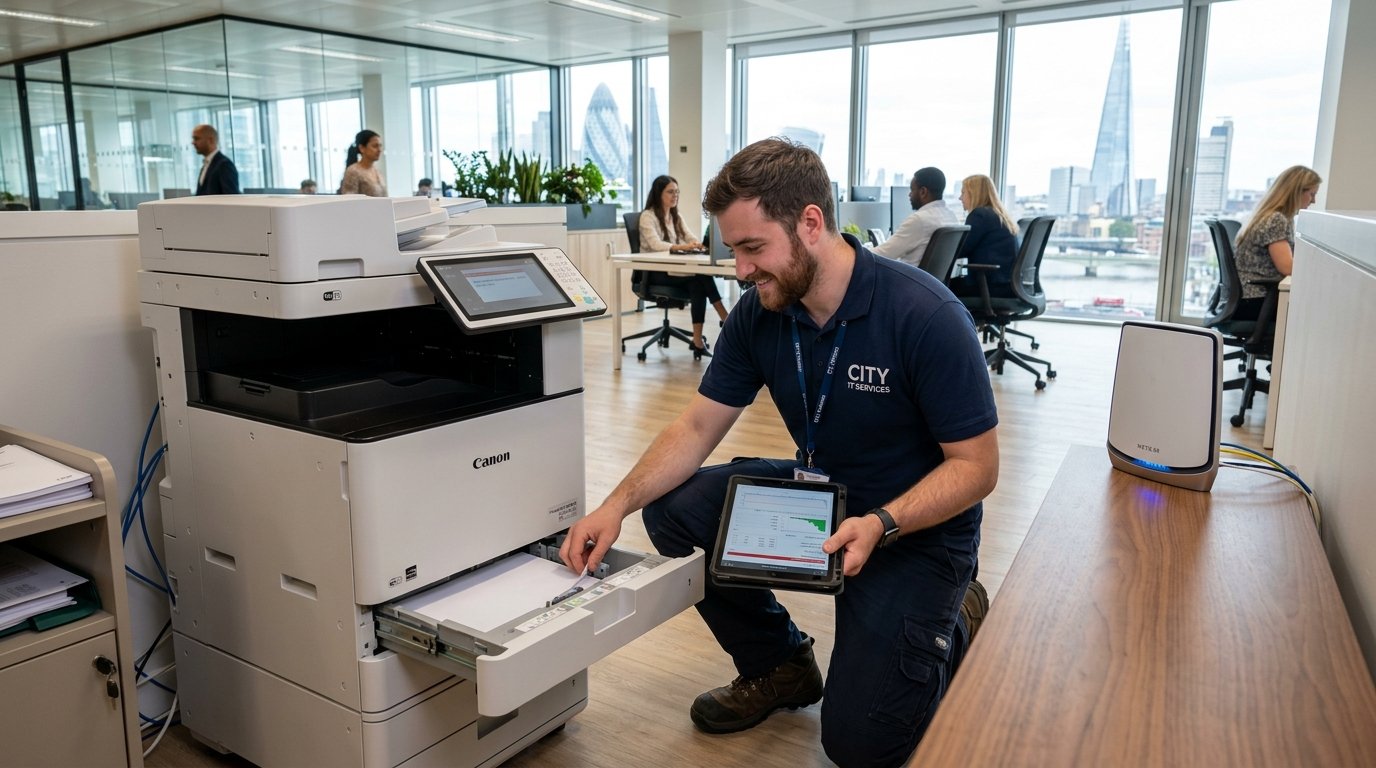
Few office technology issues are more frustrating than a printer suddenly going offline, spitting out blank pages, or jamming midway through an urgent document. This comprehensive guide details proven solutions for HP, Epson, Canon, Brother, and Xerox printers.
1. How to Fix "Printer Offline" Errors on Windows & Mac
A printer showing "Offline" usually means your computer has lost communication with the device over USB or Wi-Fi, even if the printer is powered on.
Quick Checklist:
- Power Cycle Devices in Sequence: Turn off the printer, restart your Wi-Fi router, and restart your computer. Power the printer back on after the network is fully online.
- Uncheck 'Use Printer Offline': Open Settings > Bluetooth & devices > Printers & scanners, click your printer, open the queue, click the Printer menu in the top bar, and verify that Use Printer Offline is unchecked.
- Assign a Static IP Address: Routers often reassign dynamic DHCP IP addresses. Setting a fixed IP via the printer's web admin portal ensures your PC never loses connection.
2. How to Clear a Stuck Print Spooler Queue
When a corrupted print job blocks the Windows Print Spooler, all subsequent print jobs become queued indefinitely.
- Press
Win + R, typeservices.msc, and hit Enter. - Scroll down to find Print Spooler, right-click it, and click Stop.
- Press
Win + R, typeC:\Windows\System32\spool\PRINTERS, and click OK (grant administrator permission). - Select and permanently delete all files in this folder.
- Return to the Services window, right-click Print Spooler, and click Start.
3. Resolving Wireless Wi-Fi Printer Connectivity Drops
- Check Wi-Fi Frequency Bands: Most older printers only support the 2.4 GHz band. If your modern router uses combined SSID smart switching, split your 2.4 GHz and 5 GHz networks or connect via WPS.
- Update Printer Firmware: Visit the manufacturer support portal (HP Smart, Epson Connect, Canon Utilities) and install the latest firmware patch.
- Check Network Isolation / Guest Wi-Fi: Ensure the printer is on the same subnet as your laptop and not connected to an isolated guest network.
4. Fixing Faded Prints, Streaks & Blank Pages
- Run Built-In Printhead Cleaning: Inkjet nozzles dry out if left unused. Run 2-3 cleaning cycles via the printer maintenance utility.
- Check Toner Seal on Laser Printers: Ensure the orange protective strip has been fully removed from new toner cartridges.
- Inspect Paper Feed Rollers: Clean rubber pickup rollers with a lint-free cloth dampened with distilled water to prevent recurring paper feed errors.
Need on-site assistance with multi-user network printers or office Wi-Fi setup? Explore our London Printer Support Hub and our Wi-Fi Networking Services.